I would prefer not to
an ode to Scrivener (and a thank you to Pupik's patrons)

I avoid writing on my computer. That is, I dare say, the point of my newsletter: sharing ways to romance your art practice, which for me involves working by hand with a variety of beautiful materials. And still: I rely on my computer at almost every stage of my writing process.
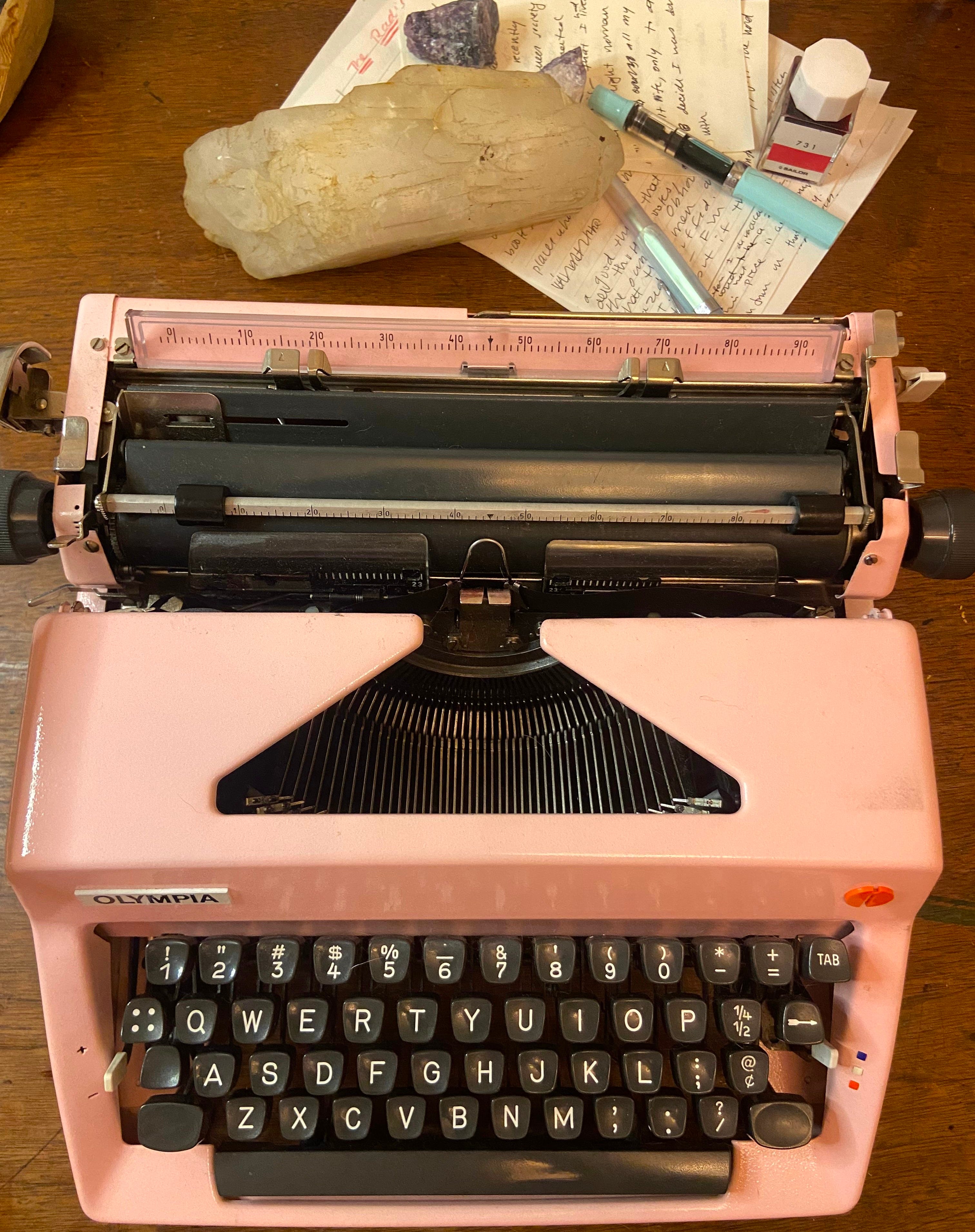
I generate and edit my work by hand, but I ultimately input everything into a word processor. Today’s newsletter is a love letter to the only word processor I’ve never hated: Scrivener. (Not a sponsored post! Just a fan.)


How do I love you? Let me count the ways.
I love that you aren’t a subscription…
…but rather a one-time purchase of $60.
I love your drag-and-drop folders.
I found Scrivener in a hopeless place. I was editing my first novel, driving myself crazy trying to keep dozens of chapters in order. To do so, I was attempting a system of nested folders in Word, and I was failing. Part of the problem was that I write a lot of drafts, so each chapter needed its own folder, and then within that folder I would have multiple drafts of that chapter. Too many times, I ended up editing in one document only to realize that it was an older draft and I then had to retrace my steps in ways that felt pointless and depressing.
Whoever designed Scrivener must have gone through something similar, because it allows me to do almost everything I was attempting with my folders within folders.
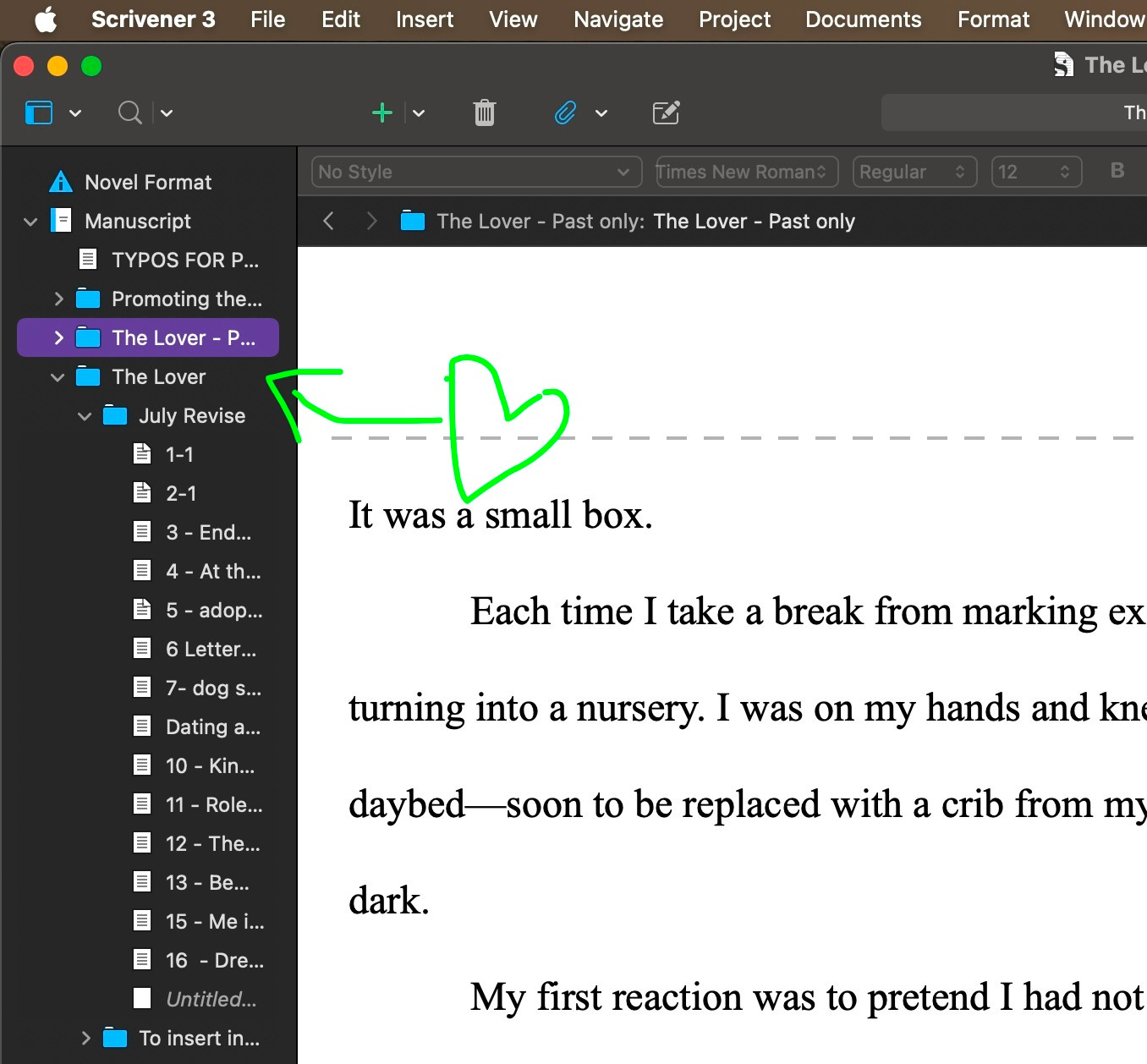
On the right, you see what you click on. Click on a document, see that document. Click on a folder, see all the documents in that folder presented as a linear text. Gorgeous! Reordering chapters is a breeze. You can even look at documents together in split screen if that’s your thing.
I love your snapshot feature
On the right side of the screen, you’ll find a little camera icon. If you click it, you’ll create a “snapshot,” i.e., a version of the document as it is in that moment. This means that (1) you can easily revert writing back to the way it was previously; (2) you don’t need to save a new version of your document every time you’re making a change you aren’t sure you’ll keep.
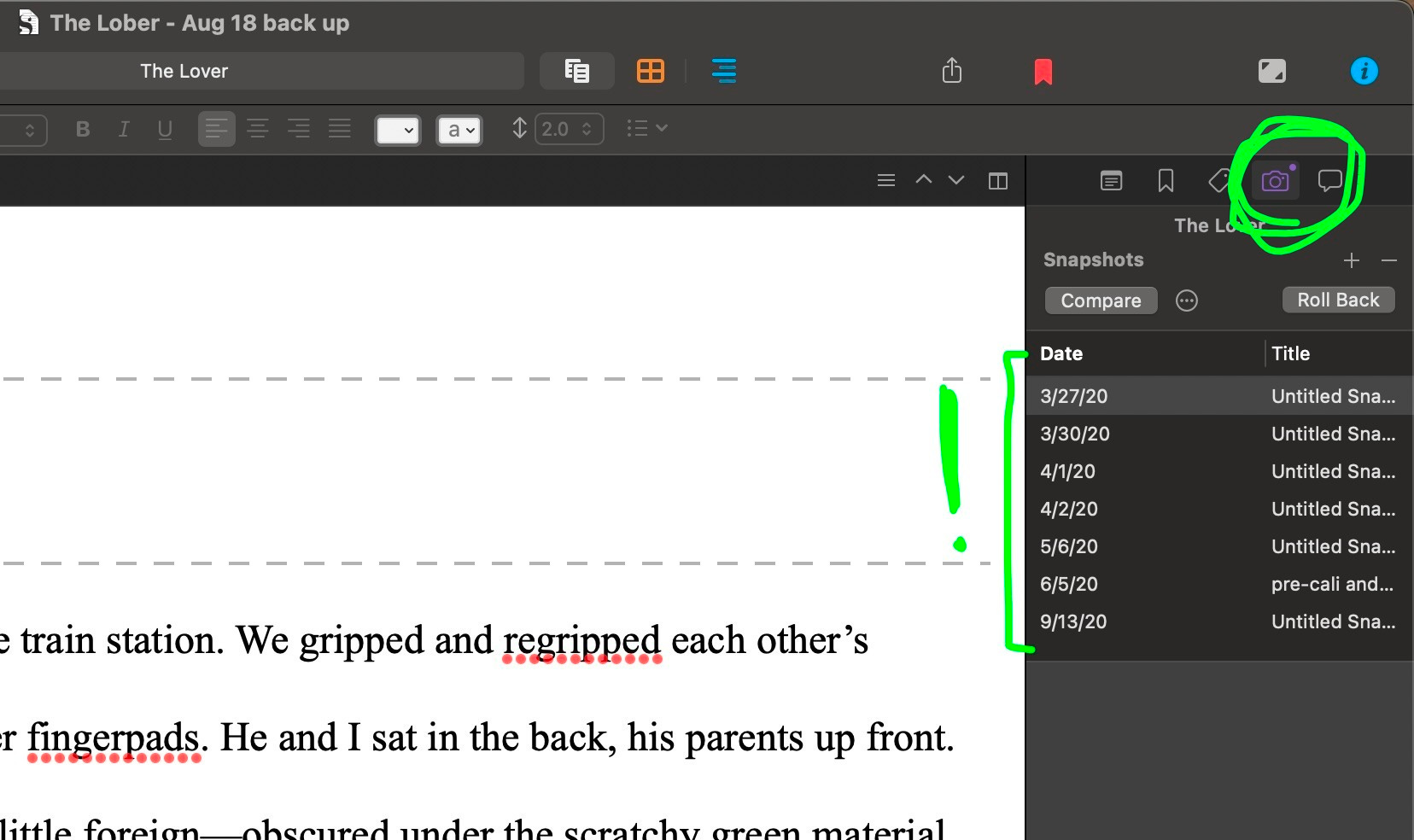
You can and probably should give your snapshots titles so you know what point in the editing process they represent. Clearly, I often forget to to do this.
I love how you compile! Mostly!
Pro: No more copy/pasting whole chapters into a single Word document when it’s time to put your manuscript together into a single document to send your long-suffering agent (shout out to Joy Harris, best of the best). The app allows you to compile with minute customization: which files you want included, what fonts, margins, how you want chapter headings formatted, and on and on.
Con: It’s easy to get lost in all the options. I have never quite mastered the compile function on this app. Actually, I always spend at least half an hour going through the compiled, exported Word document and adjusting the tabs and space breaks. No matter how many times and ways I set my tabs to 0.5”, Scrivener always compiles them into a document with 1-inch tabs, which I think we can all agree is barbaric.
I even love your ‘composition’ mode.
One click of a button and you enter a full-screen mode designed for composing (generating new material). It’s meant to visually mimic a typewriter (as if), and automatically silences all notifications.


But what I love most of all,
is when I get to stop using you and go back to my pale pink paper and iridescent purple ink.
A special note to my paid subscribers:
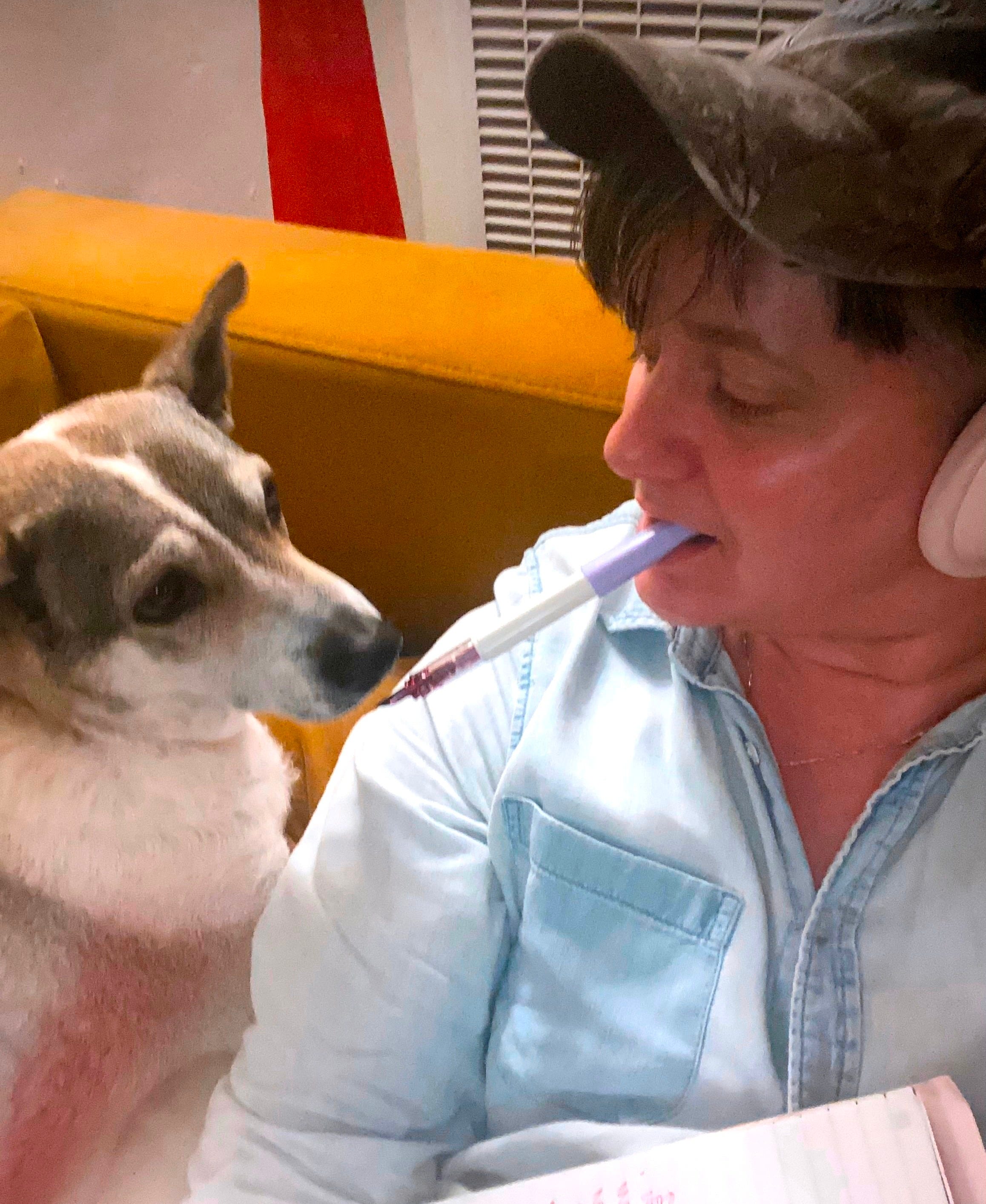
About a year ago, I began writing this newsletter, which means that about a year ago, many of your chose to become paid subscribers. My financial goal from this project has always been to afford my senior dog’s health insurance. Thanks to you, that is exactly what I have done!
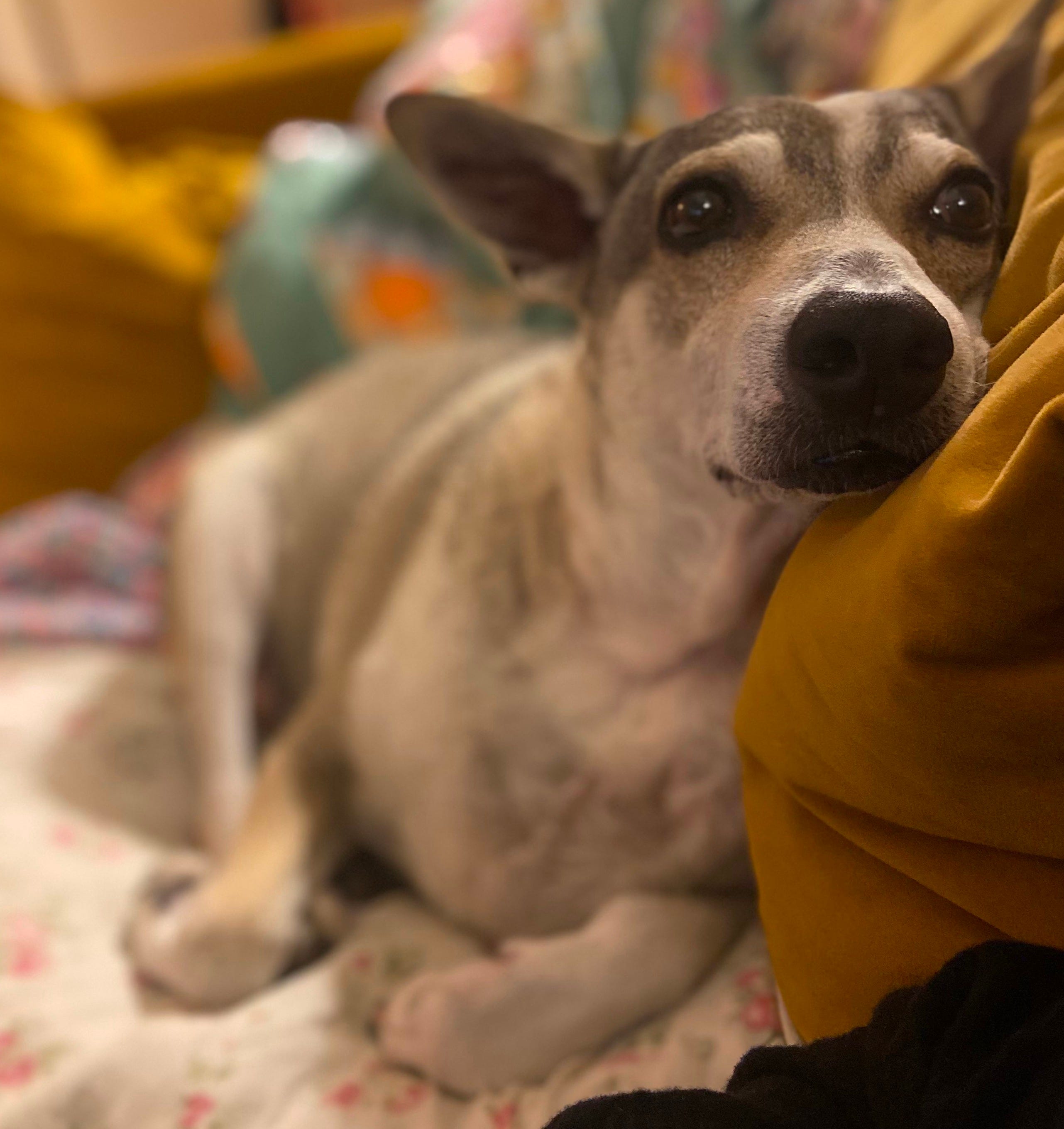
Pupik is, by the vet’s best guess, nine or ten years old. She is insured and unbothered. Thank you, from both of us. We love you.